Horde Migration
As of April 2025 (Plesk Obsidian version 18.0.69), Horde Webmail is no longer installable or supported in Plesk, still, existing Horde installations are not automatically uninstalled and may still function, though their reliability is not guaranteed. Users with existing Horde instances can continue using them at their own risk and no automatic migration to our other Webmail client, Roundcube will occur.
This change is being made to ensure the most secure and robust environment for all of your web and email hosting needs.
Please note that your email will not be affected in anyway. The Webmail interface can be thought of as a ‘theme’ for displaying your mail messages in your web browser. The same basic functions will still be in use.
You will however lose any of your current contacts in Horde Webmail when the migration is complete. There is a way to export your contacts from Horde Webmail and import them into Roundcube Webmail. This post will show you how to do this.
Export contacts from Horde Webmail
First, login to your Horde Webmail account as you normally would and on the top menu, mouse over ‘Address Book‘ and select ‘Address book of (your email address)‘ as shown below:

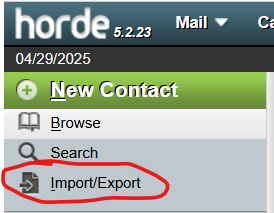
Next look to the left hand side menu and look for ‘Import/Export‘ as shown below and click:
On the next page, look at the bottom section called ‘Export Address Book‘. In the drop-down called ‘Select the export format:‘, choose ‘vCard (3.0)‘ as shown below and then click ‘Export‘
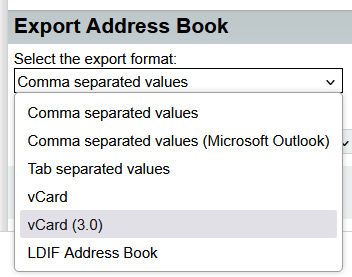
This will prompt you to download ‘contacts.ics‘. Please make note of where you download this file so you can then Import it into Roundcube Webmail.
Changeover from Horde to Roundcube
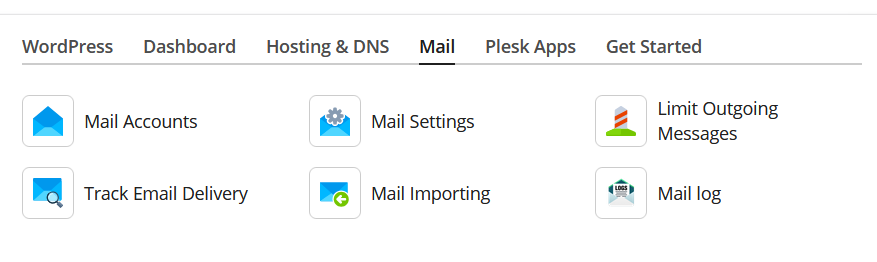
Now we go the ‘Mail Settings‘ for your domain as shown below:
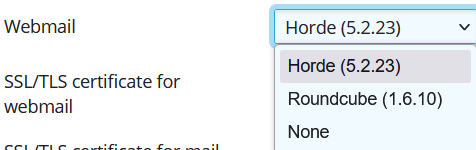
Once on the Mail Settings page, scroll down to the drop-down box called ‘Webmail‘, it will currently have ‘Horde (5.2.23)‘ selected. Change this selection to ‘Roundcube (1.6.10)‘ as shown below:
Scroll down to the bottom and click ‘OK‘
Import contacts into Roundcube Webmail
Login to Roundcube Webmail, look to the left hand menu and click ‘Contacts’ as shown below:

Now look to the top menu and click ‘Import‘ as shown below:

The following will pop-up:
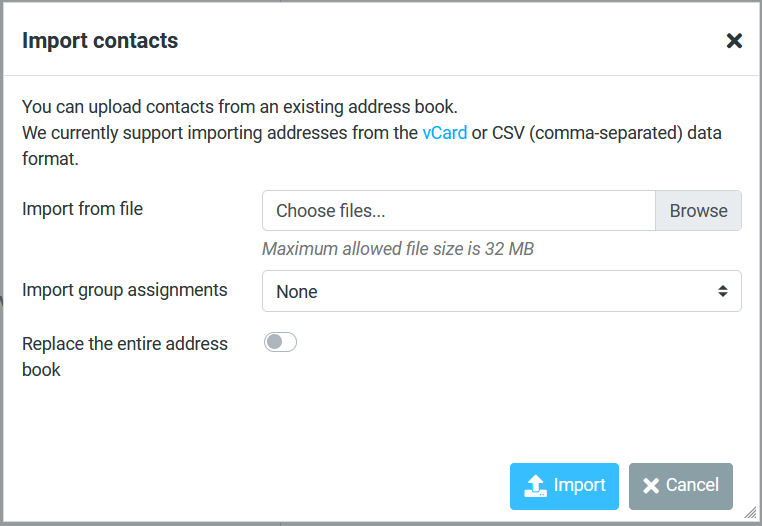
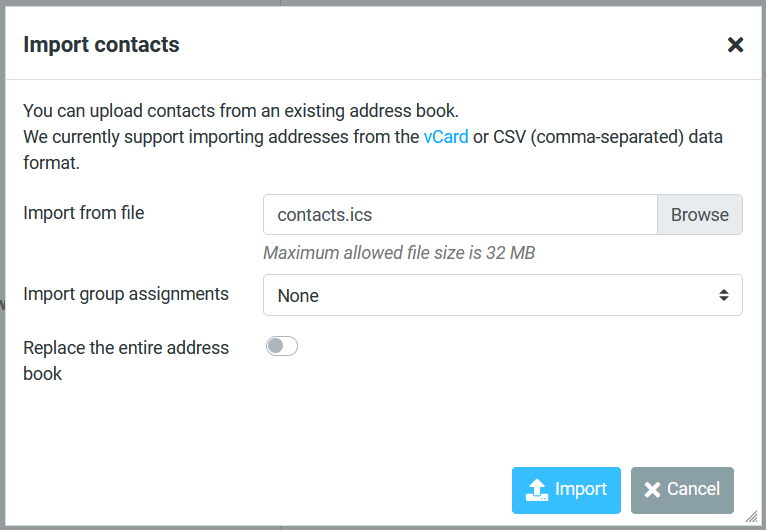
Click the ‘Browse‘ button and locate the file you downloaded and select it, it should now appear in the text box as shown below:
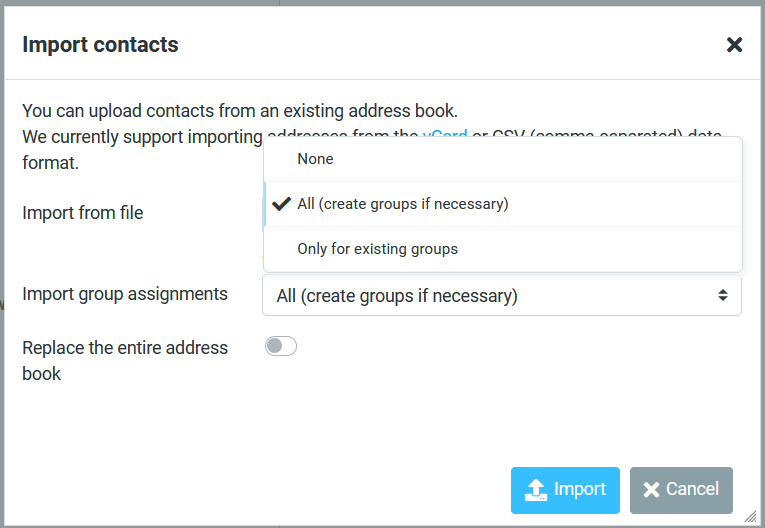
If your contacts in Horde were arranged in Groups, select ‘All (create groups if necessary)‘ as shown below:
Now click ‘Import‘, you will be presented with the following:
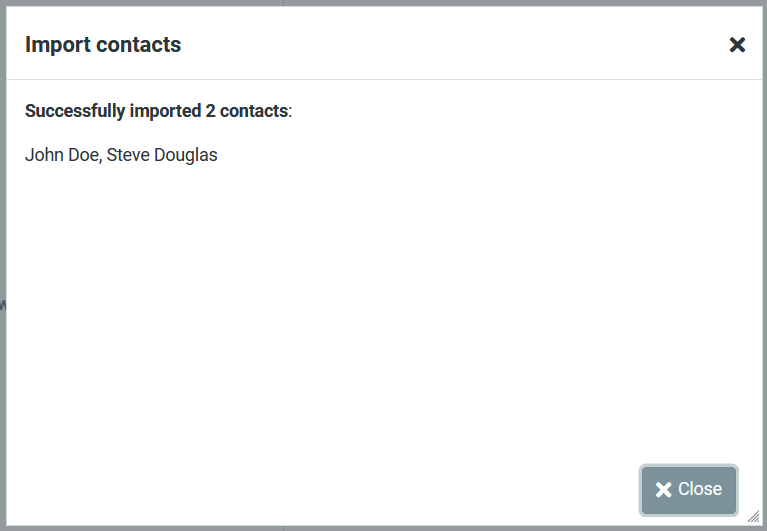
Click ‘Close‘, you’re done!